Refunds
A refund returns money to your customer after a transaction has been processed. You can refund a transaction that has reached the Completed or Fulfill state, either in your space or through the web service API. See the Transaction States chapter for what those states mean.
Online and offline refunds
| Type | What happens |
|---|---|
| Online | We send the refund request directly to the processor. The money is returned to your customer through the payment method used. |
| Offline | The offline refund simulates the refund in our platform but does not send it to the processor. Use it when you already refunded the payment at the processor. |
Offline refunds only mark the transaction in our system — they do not communicate with external partners or acquirer systems. This keeps your reporting accurate when the actual money movement happened elsewhere.
A refund is customer-initiated if it was not triggered by the merchant's consent, for example by a chargeback on the credit card or by a direct debit return.
How to initiate a refund
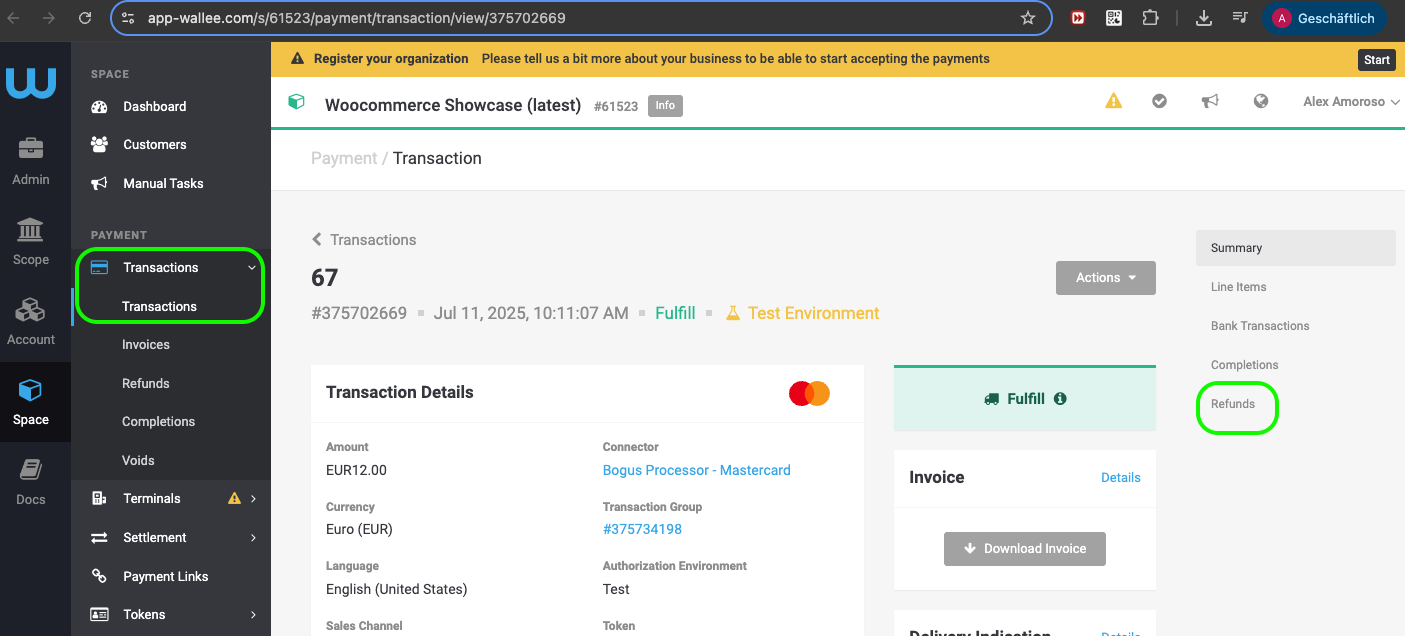
- Open the transaction overview in your space and select the transaction to be credited.
- Navigate to Refunds at the top right.
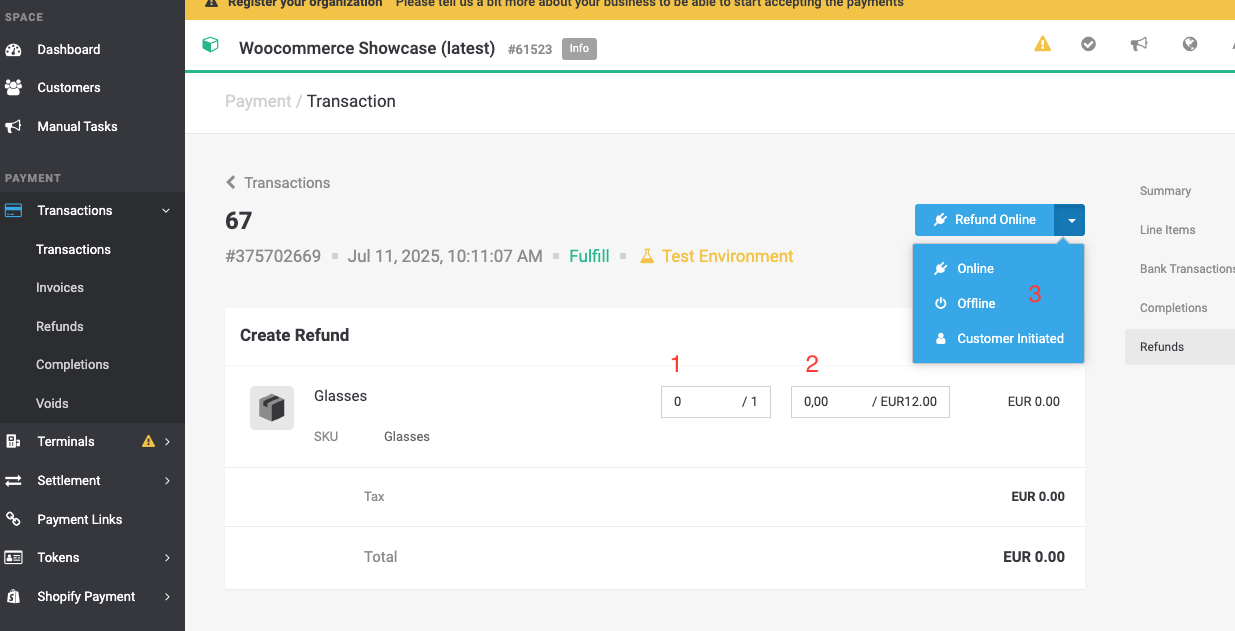
- Select the entire article to be credited.
- Enter the amount to be credited.
- Choose the refund option — Online or Offline as described above.
If you refund through the portal, make sure the same change is reflected in your own application. Changing line items only in the back office and not in your system leads to inconsistent data between the two.
Refunds via the API
You can also create refunds through the Refund Service of the web service API. A refund request reduces the line items either by quantity or by unit price — the two cannot be combined in one refund. Each request requires an external ID and the transaction reference.
How to refund terminal transactions
If your customer is still in your store, you can refund directly at the terminal: tap the three lines at the bottom of the screen and select Refund.
If the customer has already left, refund the transaction in your space as described above. This requires a virtual TID, see below.
Virtual TIDs
To refund a terminal transaction when the customer is no longer in your store, a virtual terminal ID is required so that terminal transactions can be tracked online. To check whether one exists, select your terminal location in your space and go to Virtual Pinpads at the bottom of the page.
If no virtual pinpad is available or it is inactive, the processor must be contacted to activate a Virtual Pinpad TID.
Known limitations
- The Virtual Terminal function must be activated for refunds through the portal. For transactions processed through Worldline terminals, this requires specific activation by the acquirer.
- Offline Approved transactions without a transaction reference number cannot be refunded online and require alternative methods.
- TWINT transactions cannot be refunded online through the portal — please follow the separate instructions for TWINT refunds.
Related topics
- Transaction States (the chapter this page belongs to) — which states a transaction must have reached before it can be refunded.
- Reconciliation / Accounting — how refunds appear in your settlements and reports.