Hosted OPI / OPI on Premise
Overview
This guide explains how to provision and configure the Oracle OPI On-Premise (OPI OnPrem) and hosted OPI setup with Oracle. It covers certificate installation, PSP chain code setup, and OPI interface configuration for both token exchange and payment processing.
Provisioning
These are the details of the gateway that must be provisioned:
- Interface ID:
IFC_OPI_CLOUD_OPI_PLUGIN_WALLEE_GROUP - Specific Interface:
Oracle Hospitality OPERA EFT Interface for WALLEE OPI PLUGIN by Wallee Group AG
Certificates
In order to communicate with the API host you need the certificate and a password that is provided by our support team.
Root Certificate
Install the following root certificate. In order to get the Root certificate or the client certificate please get in touch with our Support in order to get the certificates and the corresponding passwords.
Install the following client PFX.
Important: Rename the file from .p12 to .pfx before installation.
Client certificate (PFX)
Install the client certificate to establish a secure connection.
- Request the current PFX file from our support team — as stated above, the certificates and their passwords are issued by support.
- Install it together with the password you receive with the file.
PSP Chain Code
Ensure the following PSP chain code is set: WALLEE
OPI Settings – Token Exchange
Please see below the settings for the token exchange tab. In the URl make sure you are copying the URL as listed below and the port is correctly set.

- Host URL: https://hospitality.wallee.com/v1/opi/token
- Failover URL: https://hospitality.wallee.com/v1/opi/token
OPI Settings – Payment Interface
The communication with the wallee terminals are working through the cloud therefore its important tht the Communcation mode is set to Middleware
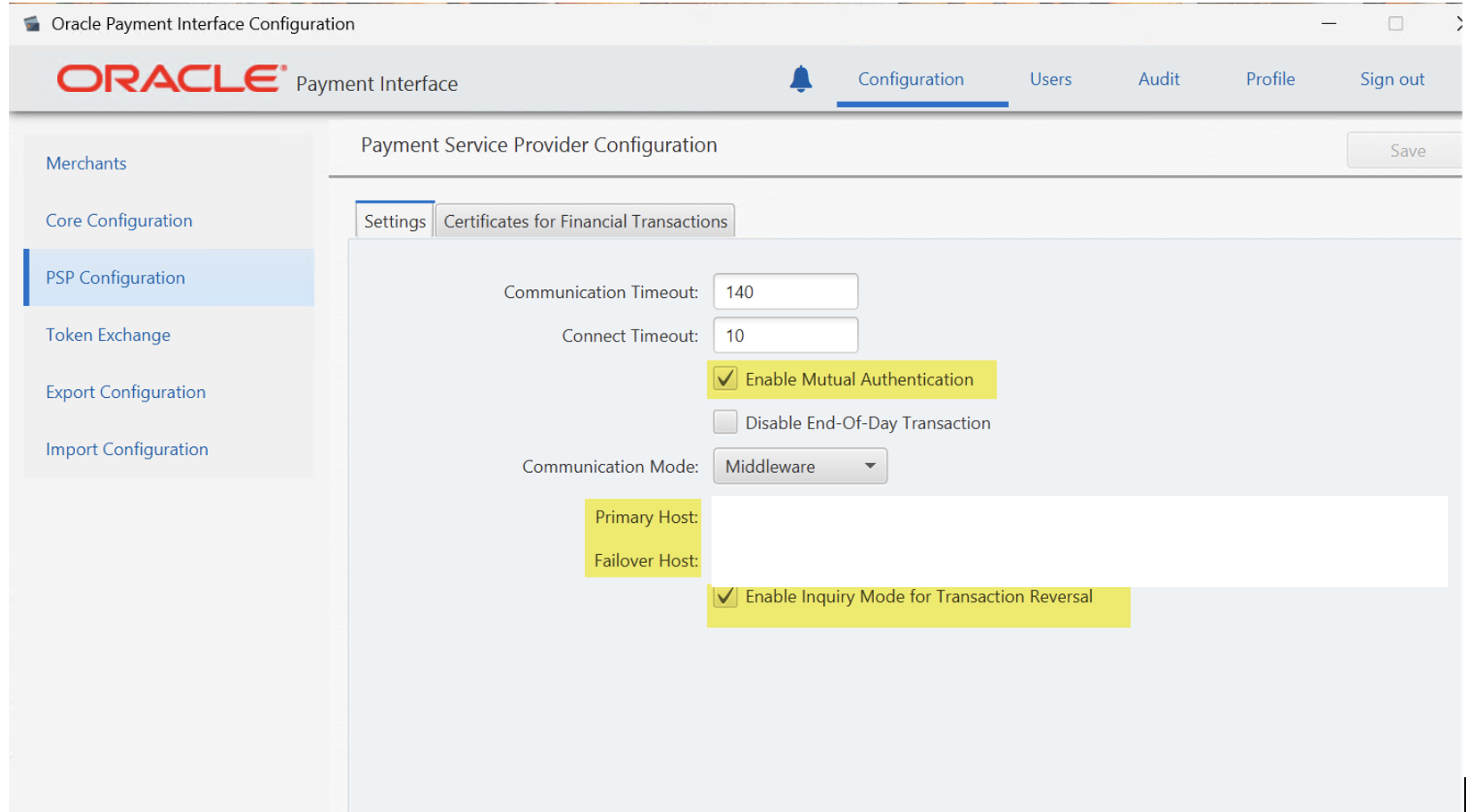
- Mutual Authentication: Enable (mandatory). Upload the certificate as well.
- Inquiry Mode for Transaction Reversal: Enable
- Primary URL: https://hospitality.wallee.com/v1/opi/payment
- Failover Host: https://hospitality.wallee.com/v1/opi/payment
Related topics
- Opera Cloud — provisioning the Opera Cloud interface that uses this OPI setup.
- Oracle Symphony — the Simphony POS integration, which uses the same certificates.