Subscriptions
After creating a product and a subscriber, the next step is to subscribe the customer — this creates a subscription, the object that links one subscriber to one product version and generates the recurring charges.
Creating subscriptions
Create a subscription in the portal
Subscriptions can be created directly in the backend under:
Space > Subscriptions — open the subscription list
- Select the subscriber you want to subscribe.
- Select the product.
- Provide a subscription reference.
- Review the monthly costs defined in the product configuration.
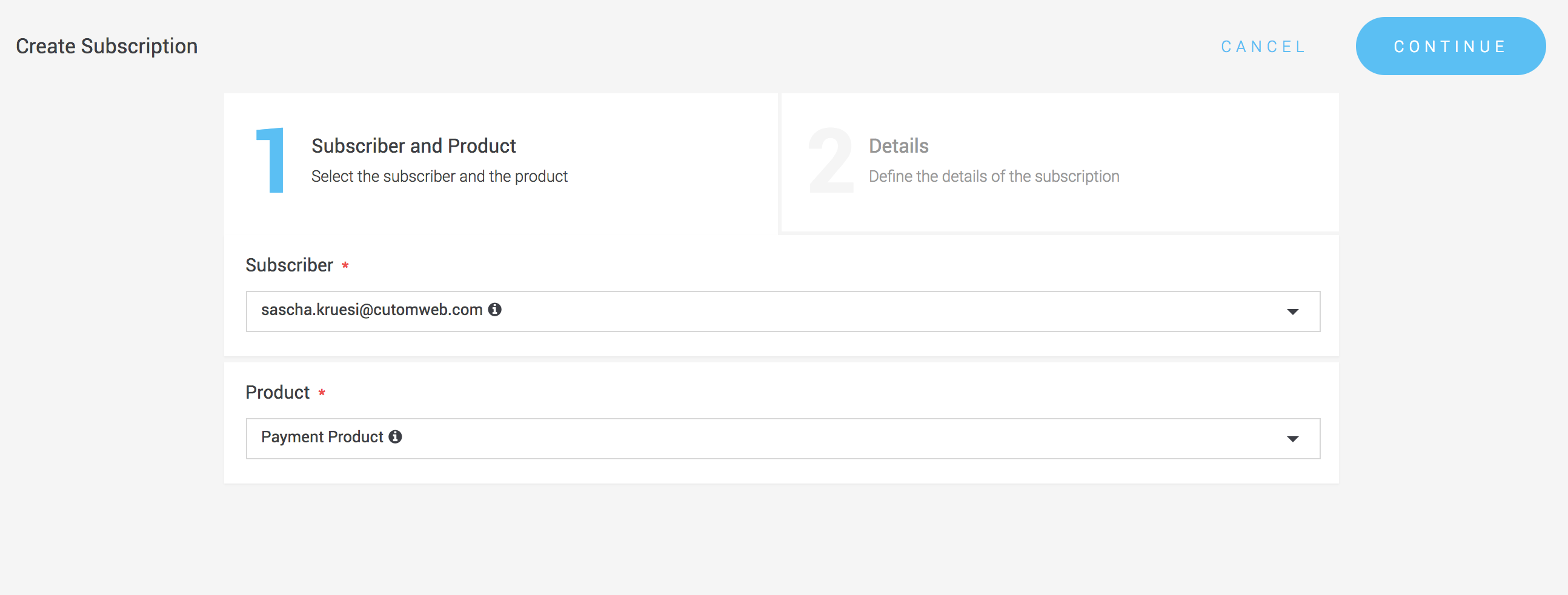
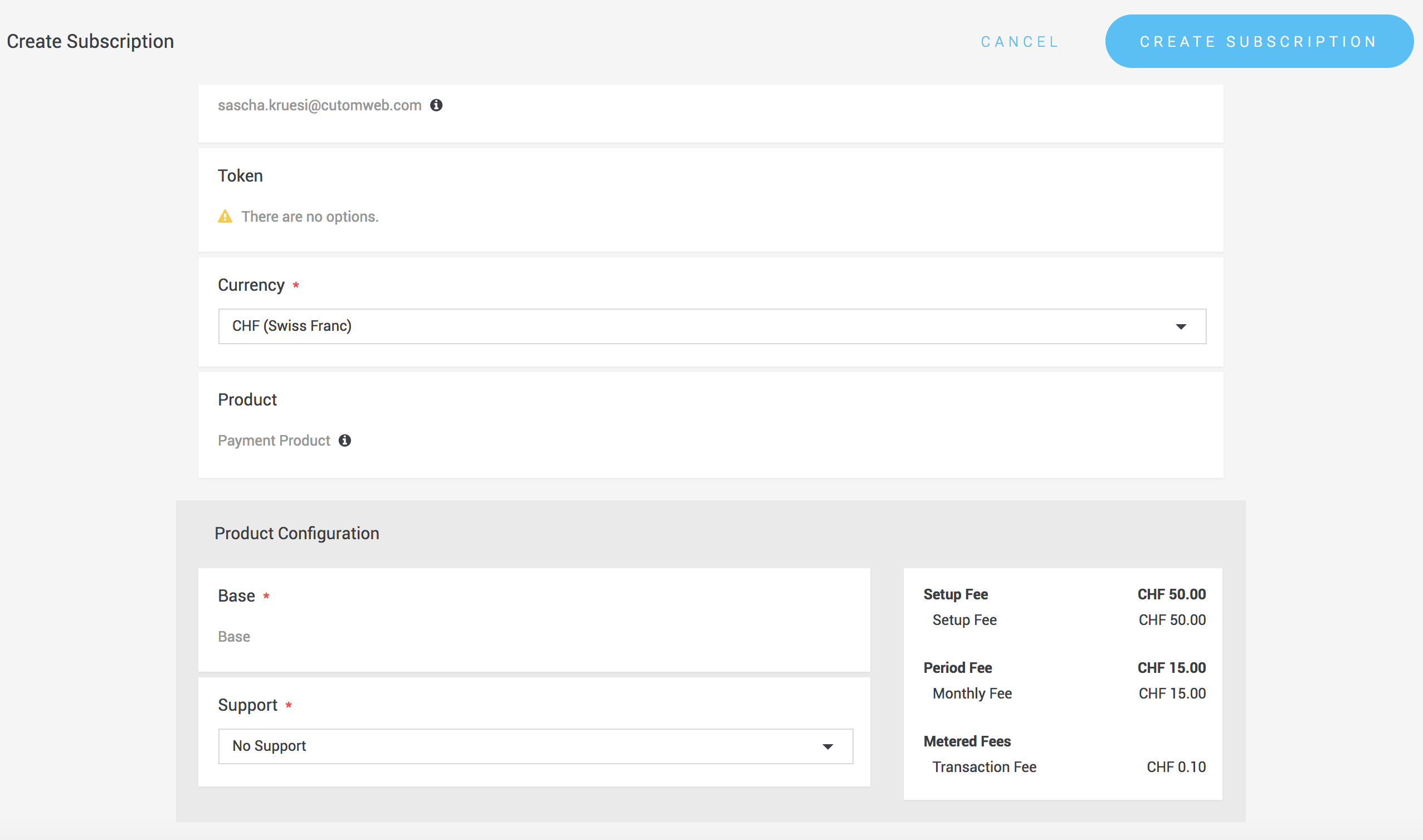
If no token is selected, a Charge Flow is triggered, and the subscriber receives an email requesting payment details.
If you already have valid payment information stored in a token, select the token during subscription creation. More about token creation can be found in the Tokenization documentation.
Create a subscription via the API
Subscriptions can also be created via the Subscription Service API. There are two ways to initialize a subscription:
Two ways to initialize a subscription
- With subscriber present:
Use theinitializeSubscriberPresentoperation. This creates a confirmed payment transaction that can be used to generate a Payment Page URL or an IFrame (see Payment Page or IFrame documentation). - Without subscriber present:
Use a Charge Flow with theinitializeoperation. This sends a payment link to the subscriber to provide payment details.
Tokens
Subscriptions can be created with a specific token.
- If a token is already initialized, no further input from the subscriber is required.
- If no token is provided, a new token will be created but not initialized. The subscriber will then be prompted for payment details during the initial transaction.
Tokens can either be:
- Created automatically during subscription creation, or
- Created manually and assigned to the subscription.
Create a token in the portal
Tokens can be created in:
Create a token via the API
Use the Token Service create operation.
Example Request
{
  "enabledForOneClickPayment": true,
  "externalId": "customer-id-1",
  "tokenReference": "customer-id-1"
}
- The
externalIdmust be unique. - Sending the same
externalIdupdates the token. - When updating entities, send the current
versionproperty so the platform can detect conflicting changes.
Create the subscription
Use the Subscription Service to create a subscription.
Example Request
{
  "currency": "EUR",
  "product": { "id": 2 },
  "selectedComponents": [
    { "id": 4 },
    { "id": 2 }
  ],
  "subscription": {
    "reference": "subscription-subscriber-101",
    "subscriber": { "id": 2 },
    "token": { "id": 3 }
  }
}
This creates a subscription in PENDING state with the selected product components. The subscription must then be initialized.
Two initialization options are available:
initializeSubscriberPresent: when the subscriber is present and provides payment details directly.initialize: when the subscriber is not present, and a Charge Flow is used to collect details.
Initialize with the subscriber present
Use the initializeSubscriberPresent operation on the Subscription Service.
Request
POST /api/subscription/initializeSubscriberPresent
  ?spaceId=1
  &subscriptionId=2
  &successUrl=http://www.yoursuccessurl.com
  &failedUrl=http://www.yourfailedurl.com
Example Response
{
  "id": 2,
  "state": "PROCESSING",
  "successUrl": "http://www.yoursuccessurl.com",
  "failedUrl": "http://www.yourfailedurl.com",
  "subscription": {
    "id": 2,
    "reference": "subscription-subscriber-101",
    "state": "INITIALIZING"
  },
  "transaction": {
    "id": 2,
    "currency": "EUR",
    "state": "CONFIRMED"
  }
}
This creates a confirmed transaction. The transaction ID can be used to build a Payment Page or IFrame URL.
When the transaction is fulfilled, the subscription switches to the Active state and an active subscription version is created. See Lifecycle for all subscription states.
Initialize with a charge flow
Alternatively, use the initialize operation to trigger a Charge Flow. The subscriber is automatically asked to provide payment information if no valid token is available.
Terminating a subscription
Subscriptions can be terminated via the Subscription Service using the terminate operation.
Options:
- Respect termination period: the subscription runs until the configured termination period ends.
- Immediate termination: the subscription stops immediately, period fees are prorated, and an outstanding charge is triggered.
Example Request
spaceId=1&subscriptionId=2&respectTerminationPeriod=true
During termination, the subscription moves into the terminating state. Once all outstanding amounts are charged successfully, it switches to terminated.
Changing a subscription
Subscriptions often change over time, either because:
- The subscriber upgrades or downgrades (switches plan).
- The product itself changes, requiring migration to a new version.
Changes can be applied:
- Immediately: the current period ends, period fees are prorated, and outstanding amounts are charged.
- After termination period: changes take effect after the current period ends.
Change a subscription in the portal
Subscriptions can be edited in the backend. You can:
- Select a new product
- Define whether the termination period should be respected
This creates a new subscription version, activated according to the chosen termination setting.
Change a subscription via the API
Use the Subscription Service applyChanges operation.
Example Request
{
  "currency": "CHF",
  "product": { "id": 3 },
  "respectTerminationPeriod": false,
  "selectedComponents": [
    { "id": 14 }
  ],
  "subscription": { "id": 8 }
}
This updates subscription ID 8 to product ID 3 (Pro plan), taking effect immediately.
Upgrading and downgrading
Setup fees can complicate switching products. To reduce this, setup fees are typically reimbursed when switching between products. For example, a subscriber moving from a Basic plan to a Pro plan does not pay the full Pro setup fee again but receives a discount.
- Whether a change is an upgrade or downgrade is determined by:
- Weight: defined on the product component
- Product reference: also set on the component
If the new component has a higher weight, the change is an upgrade, and a credit is issued. If the component is new (not present in the old version), no credit is given.
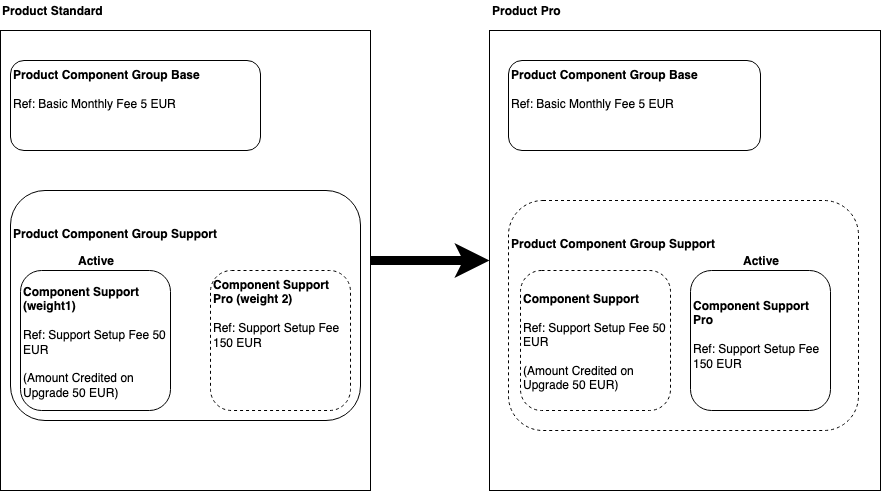
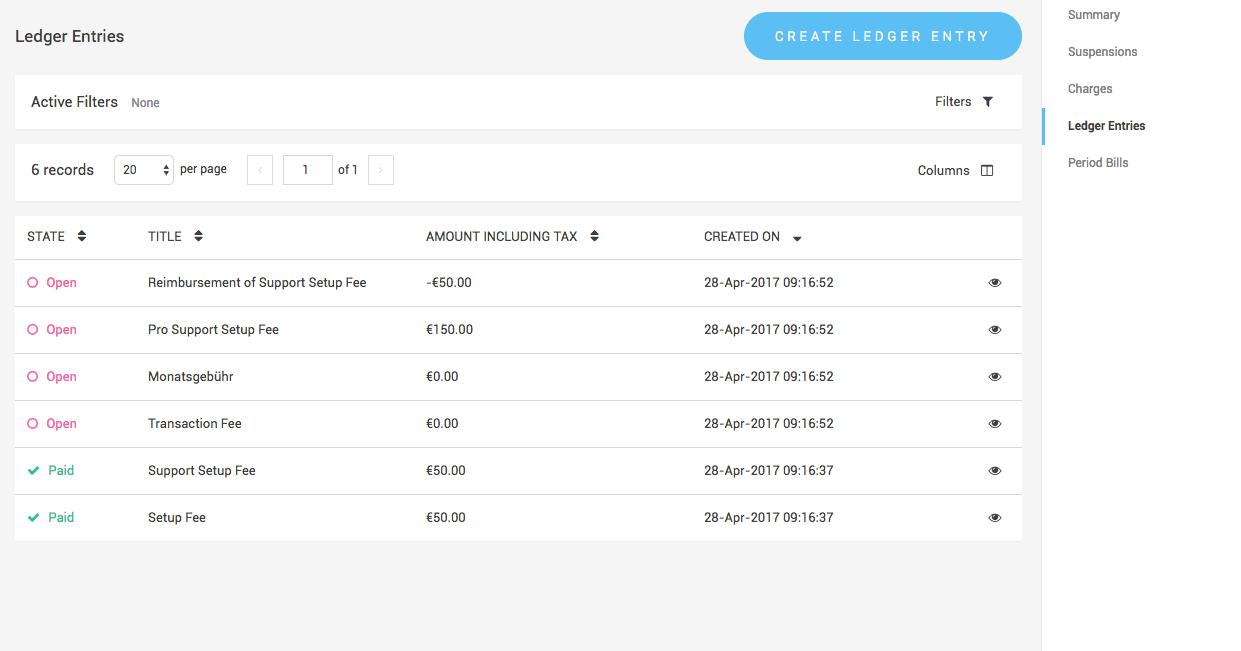
The resulting credit or debit is visible in the subscriber's ledger — see Billing & Charging.
Related topics
- Billing & Charging — how the charges for a subscription are calculated and collected.
- Lifecycle — all subscription states, suspensions and payment failures.
- Webhook — reacting to subscription state changes in your system.